Forecast Change Log Revert
How to Revert an Forecast Change Log?
Events/Actions that Can be Reverted
Events/Actions that Can not be Reverted
Filter the Forecast Change Logs
With numerous activities and updates taking place at the forecast level, it can be challenging for teams to track changes and finalize the forecast. The forecast change logs make it easier to identify who made specific updates and, when necessary, revert changes to restore previous values. This not only enables users to manage forecast adjustments but also ensures that every action is transparent and traceable for all team members involved.
Revert functionality on the Forecast Change Log provides users with the ability to revert changes made to forecasts and return forecasts to an earlier state whenever needed.
NOTE The revert action is made available for only client admins, tenant admins and partner admins.
How to Revert an Forecast Change Log?
-
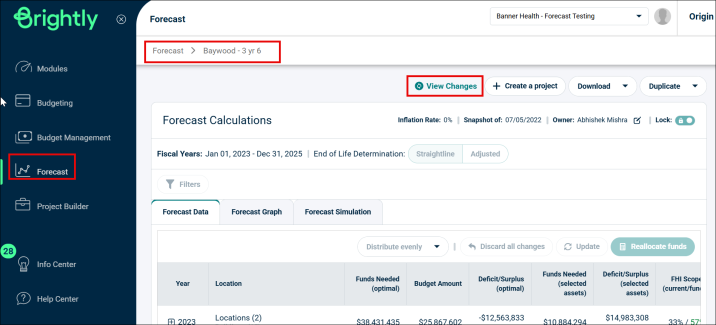
Go to Forecast Page from the left menu and click the Forecast Name you want to view changes for.
-
Click the View Changes button.
-
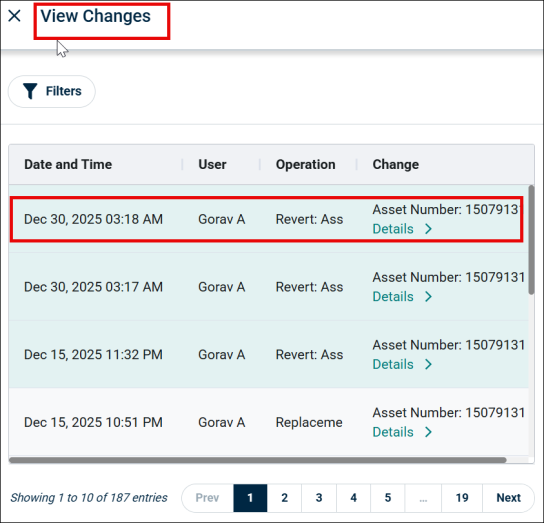
List of change logs for that forecast appears on the screen.
-
Click the Change log you want to revert.
-
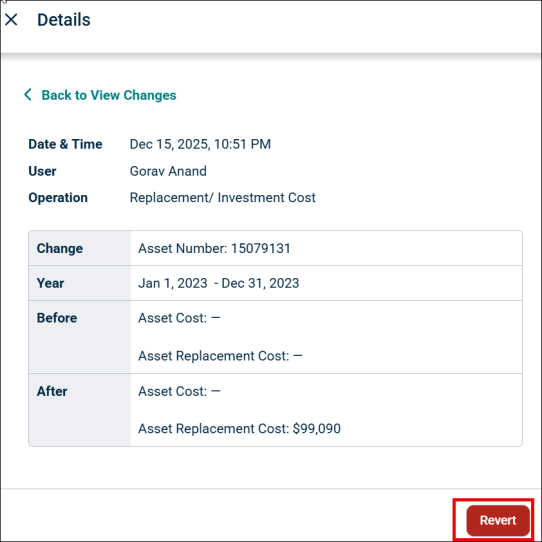
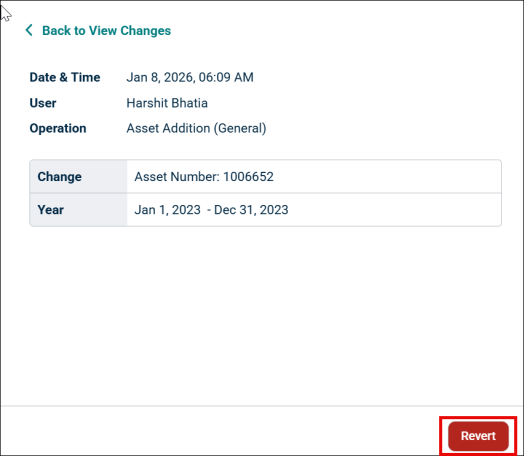
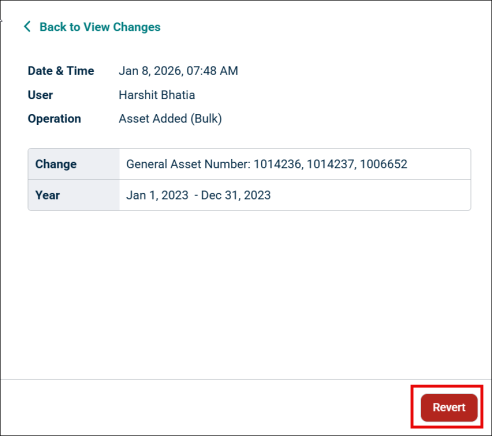
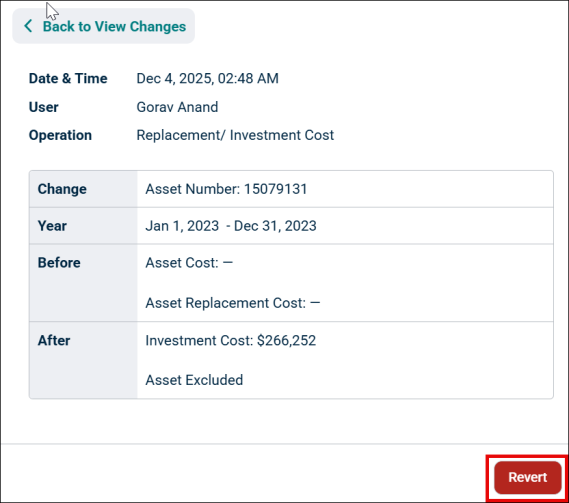
Click the Revert button at the bottom of the tab.
-
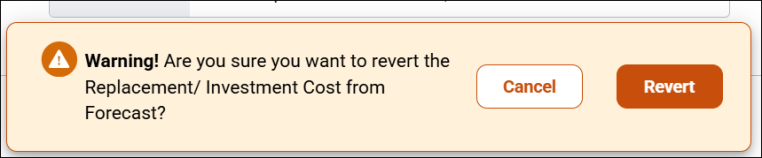
A warning shows up on the screen asking whether you are sure to revert the action, click Revert again.
-
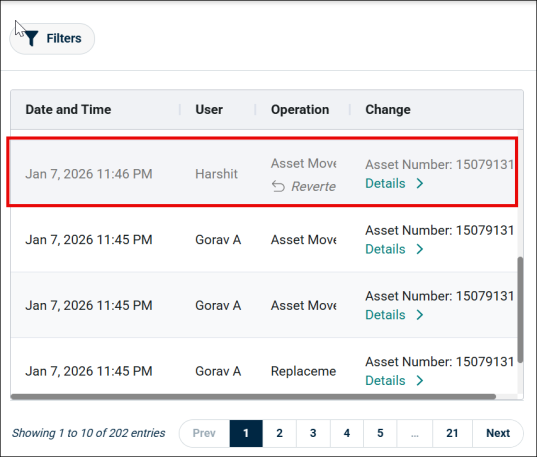
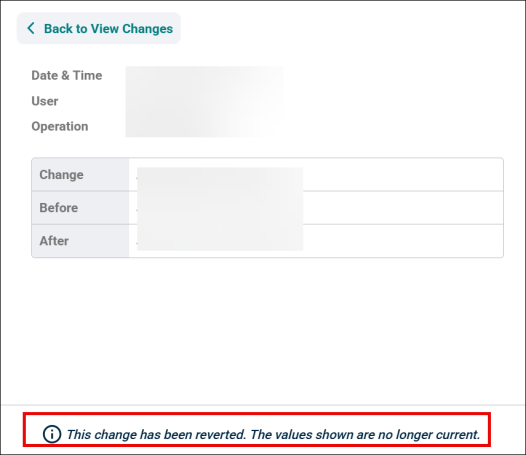
This will revert the action and the current operation on the change log page and its details are greyed out.
-
A message saying, “This change has been reverted.” Will be displayed in place of revert button after the revert is done.
-
Once the action is reverted, a new log for Revert action is created in the View Changes grid.
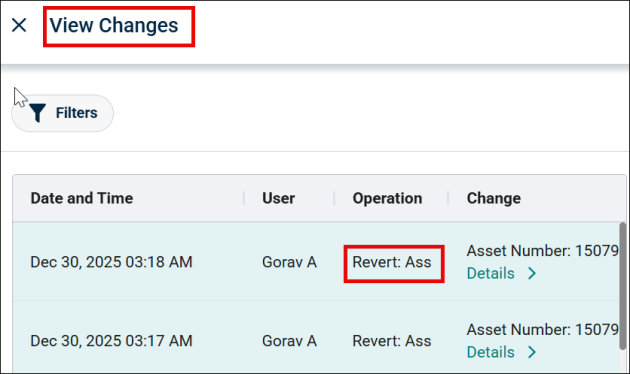
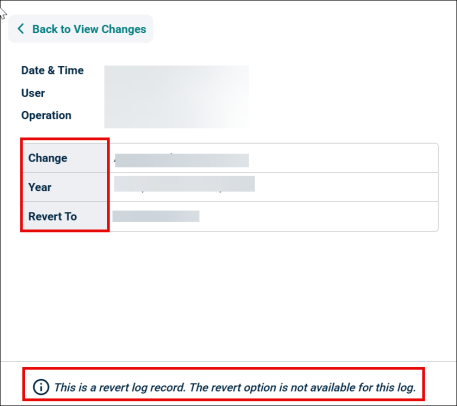
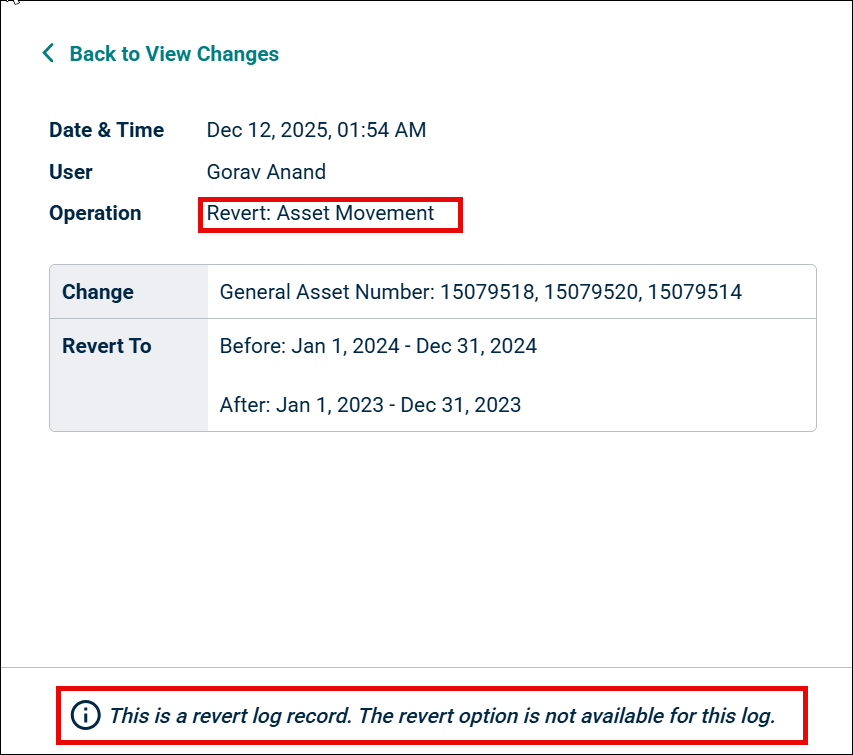
This log will display the details of the Revert along with a message saying “This is a revert log record. The revert option is not available for this log.”
Events/Actions that Can be Reverted
Only a few operations can be reverted in the system.
Asset Addition (General- Single)
If a user adds a general asset to a specific forecast but later decides that the asset should not be included, the revert feature allows them to easily remove or undo the addition of that asset from the forecast.
General asset addition process can be reverted using the Revert button in the Change Log.
Once the user clicks the Revert button on the ‘Asset added’ log, and confirms on the warning message, the asset addition is reverted and a new log with name Revert: Asset Added is created to document the action.
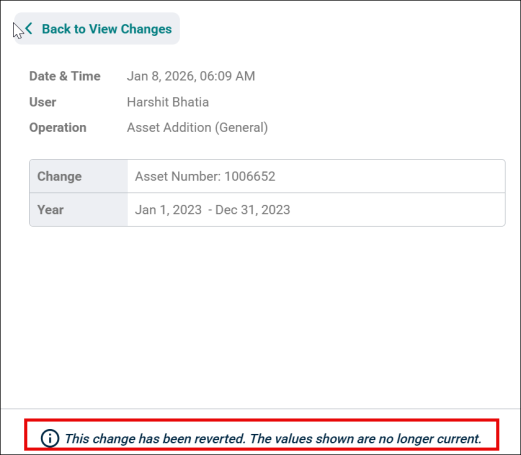
Asset Addition (General) Reverted- The detail on the log gets greyed out and a message provides confirmation that the general asset addition was successfully reversed, and the asset was removed.
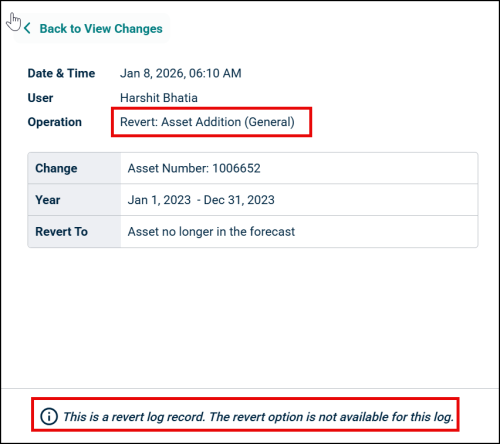
Log for Revert: Asset Addition (General) Created- The log gets recorded in the View Change grid with the name Revert: Asset Addition (General).
Virtual Asset Addition
If a user adds a virtual asset to a specific forecast but later decides that the asset should not be included, the revert feature allows them to easily remove or undo the addition of that asset from the forecast.
Virtual asset addition can be reverted using the Revert button on the Change Log.
Once the user clicks the Revert button on the Asset Addition (Virtual) log and confirms the warning message, the virtual asset addition gets reverted and a new log with name Revert: Asset Added (Virtual) is created to document this action.
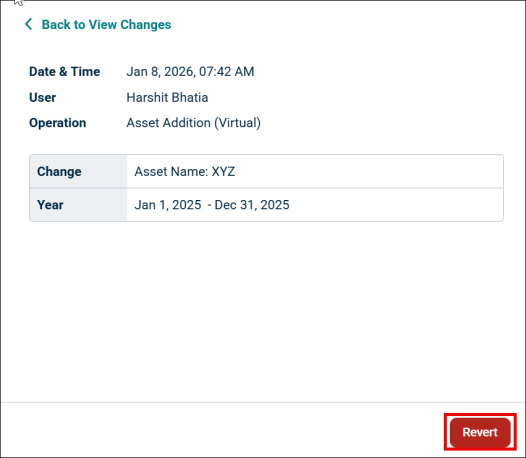
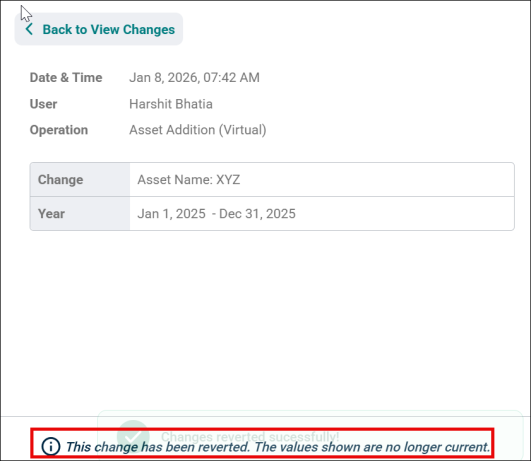
Asset Added (Virtual) Reverted-The detail on the log gets greyed out and a message provides confirmation that the virtual asset addition was successfully reversed, and the asset was removed.
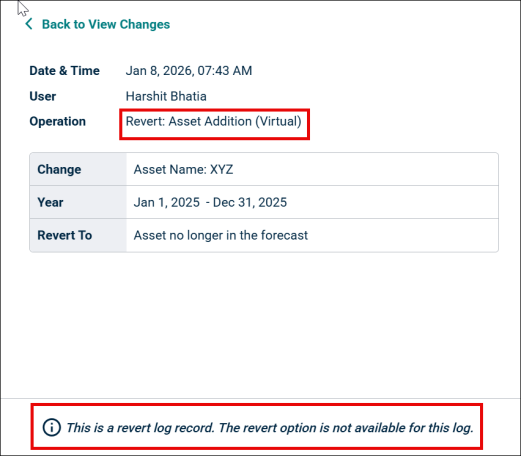
Log for Revert: Asset Addition (Virtual) Created- The log gets recorded in the View Change grid with the operation name Revert: Asset Addition (Virtual).
General Asset Addition -Bulk
A user can only add general assets in bulk, and if bulk general assets added in a specific forecast needs to be excluded from that forecast, the revert feature allows them to easily remove or undo the addition of that asset from the forecast.
General assets added in bulk can be reverted using the Revert button in the Change log.
Once the user clicks the Revert button on the Asset Added (Bulk) log and confirms the warning message, all the asset addition gets reverted and a new log with name Revert: Asset Added (Bulk) is created to document this action.
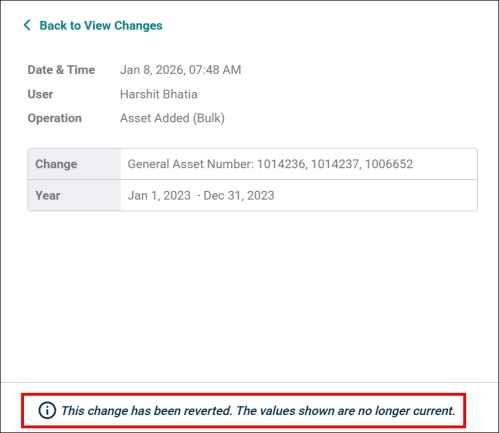
Asset Added (Bulk) Reverted-The detail on the log gets greyed out and a message provides confirmation that the assets addition was successfully reversed, and the assets were removed.
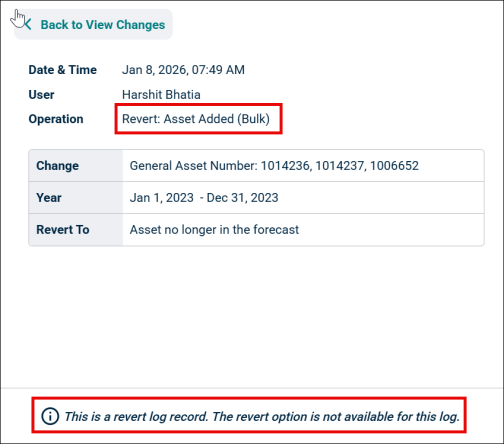
Log for Revert: Asset Added (Bulk) Created- The log gets recorded in the View Change grid with the operation name Revert: Asset Added (Bulk).
Asset Include/Exclude (Include in Forecast Toggle)
If a user has included or excluded an asset to a specific forecast but later decides that the asset should not be included/excluded, the revert feature allows them to easily undo the current state of that asset from the forecast.
The assets excluded or included for fiscal year can be reverted using the Revert button from the change log.
Once the user clicks the Revert button on the Asset Include/Exclude log and confirms on the warning message, the assets inclusion or exclusion gets reverted and a new log gets generated to document the action.
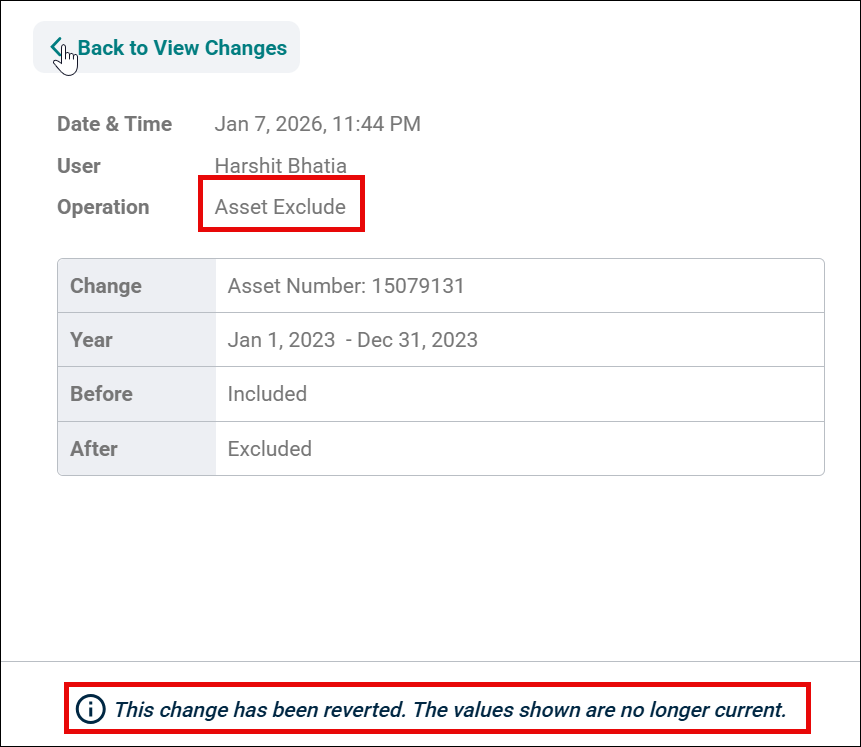
Asset Exclude Reverted- When the asset exclude action is reverted, then the detail on the log gets greyed out and a message provides confirmation that the asset exclude was successfully reversed.
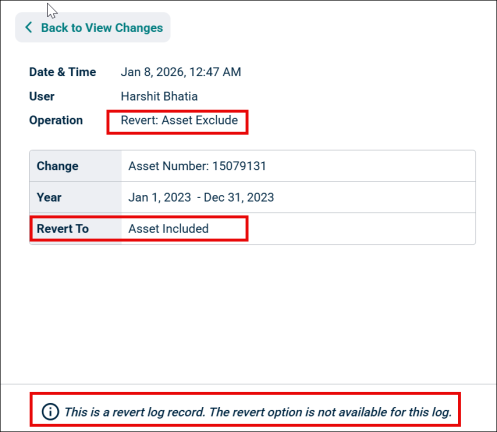
Log for Revert: Asset Exclude Created: The excluded assets are again included, and a new log gets generated with the operation name Revert: Asset Exclude.
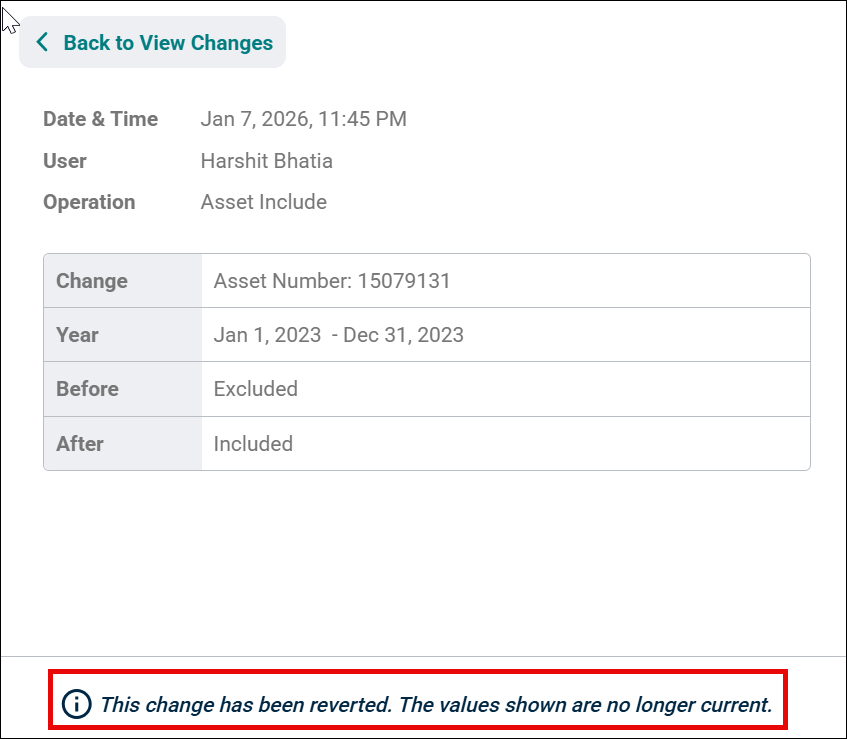
Asset Include Reverted- When the asset include action is reverted, then the detail on the log gets greyed out and a message provides confirmation that the asset include was successfully reversed.
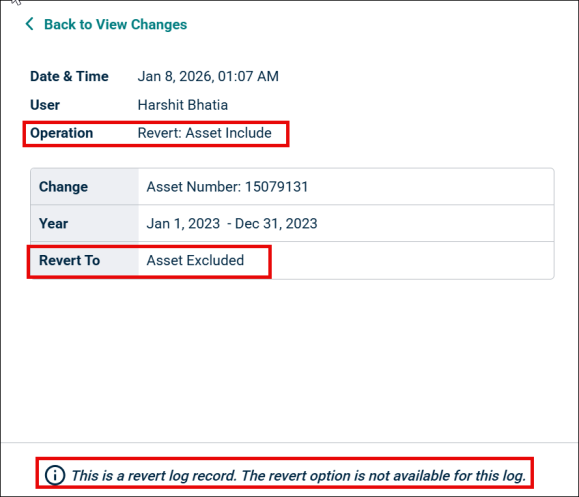
Log for Revert: Asset Include Created: The included assets are again excluded, and a new log gets generated with the operation name Revert: Asset Include.
Asset Movement (Single)
If a user has moved an asset to a specific forecast but later decides that the asset should not be included in that forecast, the revert feature allows them to easily remove the asset and move it back to the original place.
The asset moved between the years can be reverted using the Revert button on the Change Log.
When a user clicks the Revert button on the Asset Movement log and confirms on the warning message, the asset movement gets reverted along with its include/exclude state, and a new log gets generated to document the action.
For example, if an asset X is included in year 2024 and then moved to year 2026, it gets removed from 2024 and is included in 2026. When revert is done, it is removed from 2026 and is included in 2024 again.
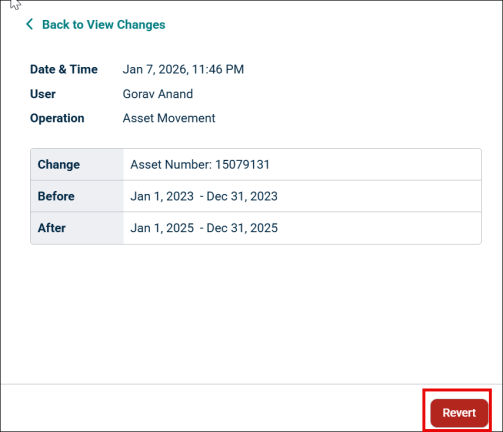
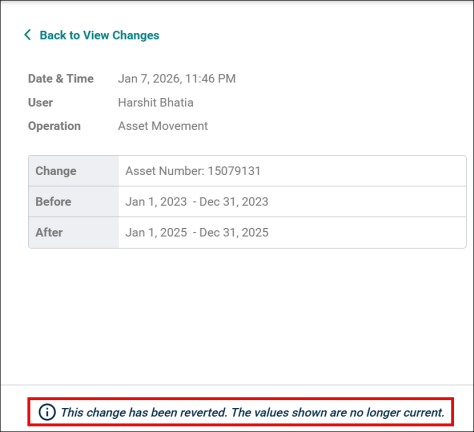
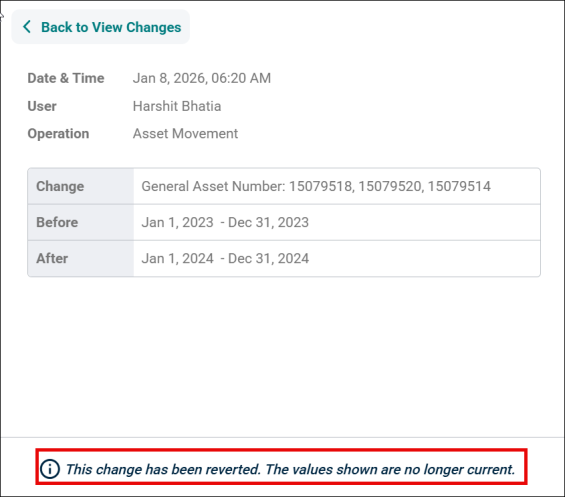
Asset Movement Reverted- When the asset movement action is reverted, then the detail on the log gets greyed out and a message provides confirmation that the asset movement was successfully reversed.
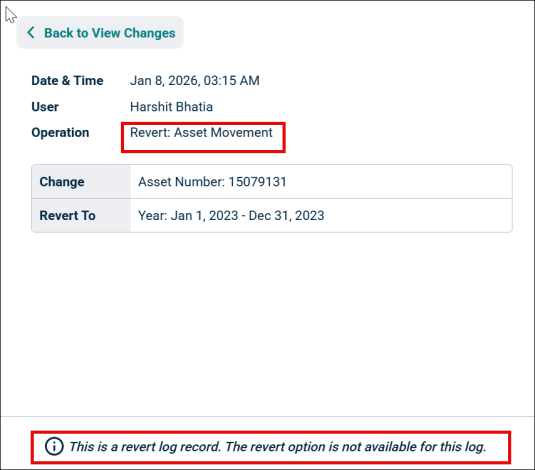
Log for Revert: Asset Movement Created: The assets are removed from current year and are moved again to previous year, and a new log gets generated with the operation name Revert: Asset Movement.
Asset Movement (Bulk)
If bulk assets are moved to a specific forecast but later it is decided that the assets should not be included in that forecast, the revert feature allows them to easily remove those assets and move it back to the original place with just one click.
NOTE During the Revert, only the assets present in the forecast without any further movement or operation are reverted.
The assets movement in bulk from one year to another can be reverted using the Revert Functionality on Change Log panel.
NOTE For bulk asset movements, Revert Available button is present.
When a user clicks the Revert Available button on the Asset Movement- Bulk log and confirms on the warning message, the available asset movement gets reverted along with it include/exclude state, and a new log gets generated to document the action.
For example, there can be two scenarios:
1st Scenario: Multiple assets moved and then reverted back.
If 5 assets are moved from year 2024 (included) to year 2025, then they are excluded from 2024 and are included in 2025. When the revert is done, all these assets move back to 2024 and are excluded from 2025.
2nd Scenario: Multiple assets moved, some are again moved and then revert happens from first log.
5 assets moved from 2024 to 2025, however, before reverting, if 2 out of 5 assets are again moved to 2023 (included), then they get removed from 2025 and then moved and included to 2023. Now if the revert button is clicked on the 1st scenario log, then only e assets that are currently present in 2025 gets reverted and the 2 assets that have now moved no longer get affected with revert.
Asset Movement Reverted- When the asset movement action is reverted, then the detail on the log gets greyed out and a message provides confirmation that the asset movement was successfully reversed.
Log for Revert: Asset Movement (Bulk) Created: The assets are removed from current year and are moved again to previous year, and a new log gets generated with the operation name Revert: Asset Movement.
Replacement Cost/Investment Cost Update
If the replacement/investment cost for any asset is changed in a specific forecast but later it is decided that the previous numbers need to be considered, the revert feature allows them to remove any update to the replacement /investment cost and move back to previous values.
Replacement/Investment Cost for an asset can be reverted back from the change log using Revert button and a new log is generated with the details of resetting the replacement/investment cost.
When a user clicks on the Revert button on the Replacement/Investment Cost log, the updated replacement/Investment cost gets reset to the original asset cost and the replacement cost is accordingly calculated.
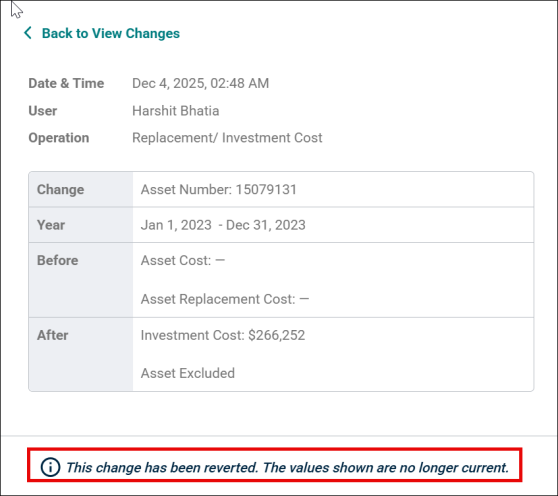
Replacement/Investment Cost Reverted- When the replacement/investment cost action is reverted, then the detail on the log gets greyed out and a message provides confirmation that the cost was successfully reversed.
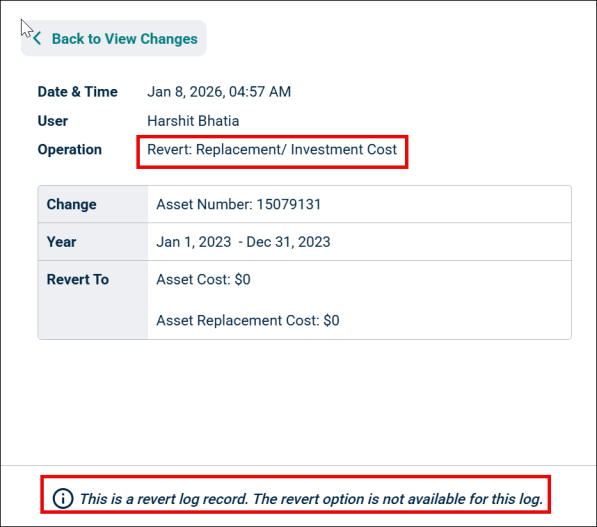
Log for Revert: Replacement/Investment Cost Created: The asset cost was set to original, and a new log is generated with the operation name Revert: Replacement/Investment Cost.
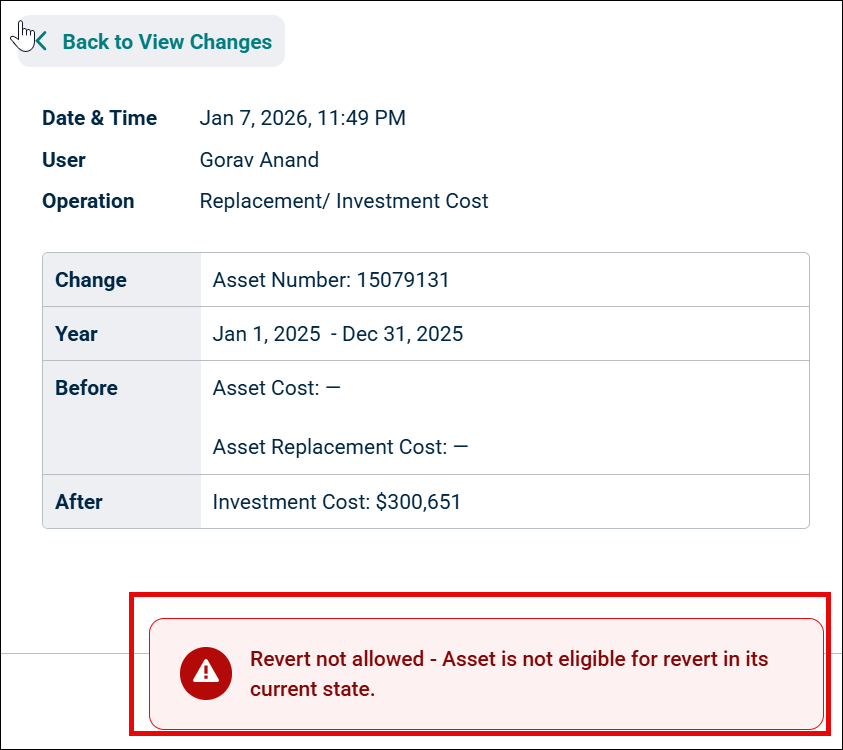
Events/Actions that Can not be Reverted
Certain operations do not offer the revert option.
-
Budget Distribution (Creation & Update)
-
Edit Forecast – Name Change & Public/Private Access Updates
-
Editing Virtual Asset
-
Virtual Asset removed
-
Discard All Changes
-
Merge Forecast (Log to be created in destination Forecast)
-
Update Forecast
-
Duplicate Forecast Event (Log to be created in destination Forecast)
A message saying ‘This operation cannot be reverted’ is displayed under all these operation logs.
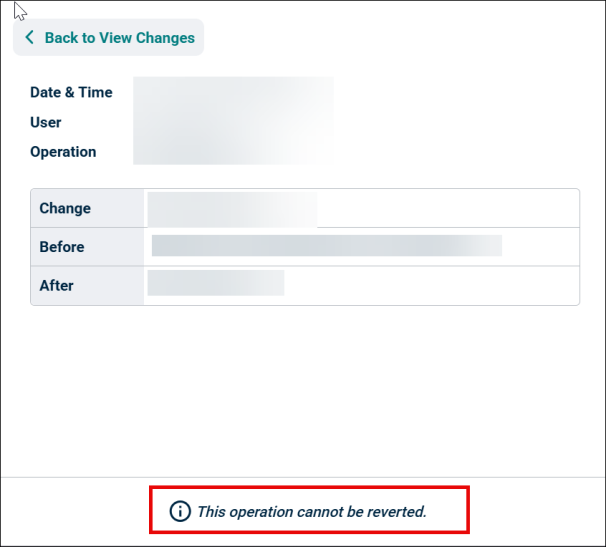
Also, if any of these operations are performed, then the previous logs will not have the revert option and message will be displayed saying ‘Revert has been disabled due to the changes in forecast.’
Filter the Forecast Change Logs
Forecast Change Logs can easily be filtered using the filter options on the View Changes tab.
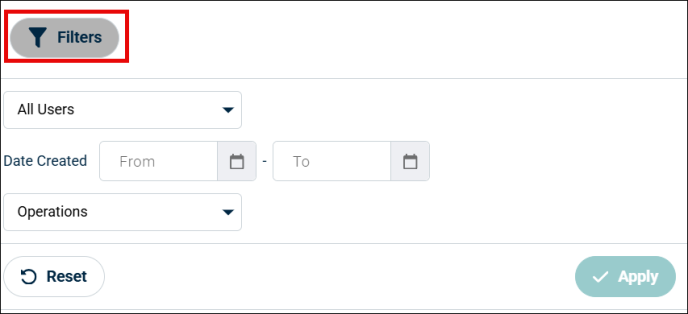
Available Filter Options
-
Users: filter entries by one or more users who made changes.
-
Date Range: specify a custom From and To date to check entries for those days.
-
Operations: select a particular operation to check its entries.
NOTE For Revert Forecast Logs, the revert options are also available in Operations dropdown.
How to apply filters?
-
Open the View Changes Tab in the Forecast.
-
Set your desired filters using the dropdowns, date picker.
-
Click Apply to refresh the results.
-
Review the results and, if needed, adjust filters to refine further.
-
Use the Reset button to remove all filters and return to the default view.
